 Liveface
Guide
How to add a talking avatar to your website
This guide takes you from a photo to an avatar speaking on your own site. It works on any website that lets you add a script tag: plain HTML, WordPress, Webflow, Shopify, React or anything else.
Request free access Book a demo call
Steps
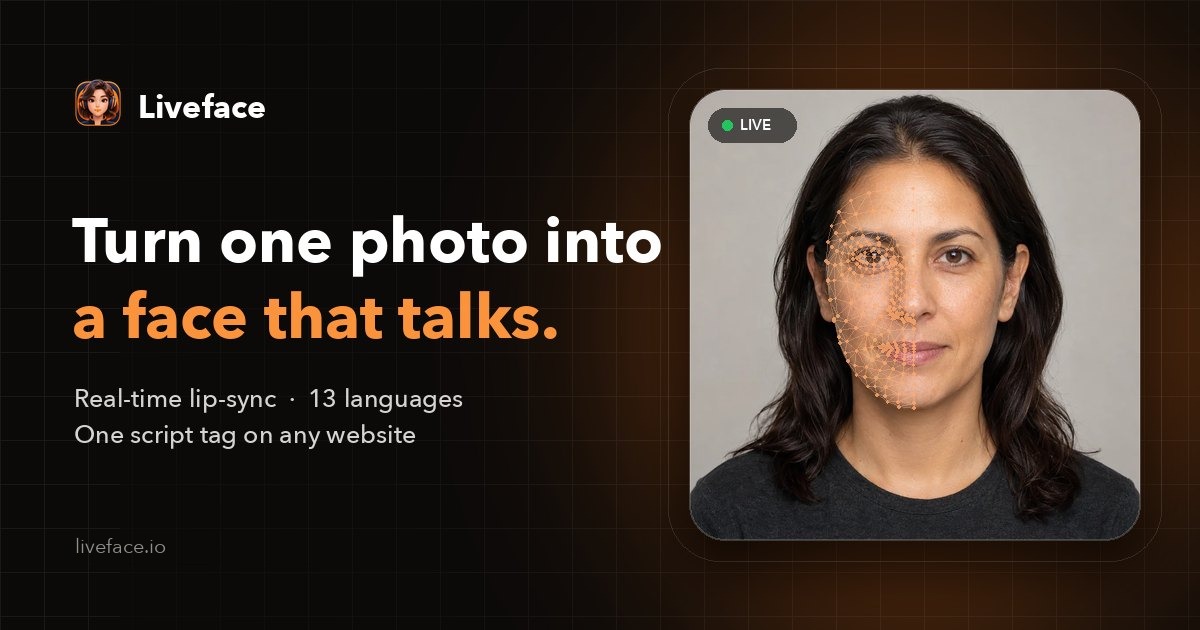
- Make the avatar. Sign in to Liveface, press New avatar and upload a clear, front-facing portrait. Liveface finds the face and fits 478 points; check them and adjust any by hand.
- Choose a voice. Pick a language and a voice, type a line and hear it. Built-in voices cover English, Spanish, French, Italian, Portuguese, German, Dutch, Polish, Russian, Turkish, Arabic, Persian and Hindi.
- Publish. Press Publish. Your site always shows the published version; later edits stay in a draft until you publish again.
- Create an embed key. Under API keys, create a key for your website and add your domain to its allow-list, so a copied snippet will not run anywhere else.
- Paste the script tag. Put the tag where the avatar should appear on your page. The avatar is drawn right after it.
- Make it speak. Call Liveface.speak(text) from your own code: on page load, a button, or every reply of your chatbot.
The embed code
The avatar's page shows this code with its id filled in. Put in your key: its full value is shown once, when you create it under API keys.
<script
  src="https://liveface.io/api/liveface.js"
  data-avatar="YOUR_AVATAR_ID"
  data-key="YOUR_API_KEY"
  data-api="https://liveface.io/api"
></script>
Make it speak
// After the avatar is ready:
document.addEventListener("liveface:ready", () => {
  Liveface.speak("Hi! Welcome to our site. How can I help?");
});

// A chatbot's answer, spoken while it is still being written:
const live = Liveface.stream();
for await (const piece of answerStream) live.write(piece);
await live.end();

// Expressions in the text set the face and are not read aloud:
Liveface.speak("[happy] Great news! Your order has shipped.");
Useful options
| Attribute | What it does |
|---|---|
| data-voice, data-provider, data-locale | Override the published voice for this site. |
| data-speed | How fast a server voice speaks, 0.7 to 1.3. |
| data-size | The widget's width in pixels (320 by default). |
| data-zoom, data-framing | How close the view is: the face, or more of the body. |
| data-expressions | Tags in the text set expressions (default); "auto" also guesses them; "off" ignores them. |
| data-ai-label | "off" hides the small AI label, for a site that discloses it another way. |
Tips
- Sound starts after the visitor's first tap, click or key on the page: browsers require it. After that, speak() works at any time, on iPhone too.
- Keep a greeting short: one or two sentences.
- Several avatars on one page? Use Liveface.get(avatarId) to talk to a specific one.
Questions
Does it work on WordPress, Webflow or Shopify?
Yes. Any site builder that lets you add a custom HTML or script block can show the avatar: paste the tag into that block.
Can visitors talk to it?
Liveface.listen() uses the browser's speech recognition where it is supported and resolves with what the visitor said; pass it to your chatbot and speak the reply.
Is it free?
Liveface is in beta and free to try: an organization can make two avatars with the built-in voices. Access is approved by hand, usually within 48 hours.
Make your own talking avatar
Upload a photo, choose a voice and hear it speak. Free during the beta.
Updated 2026-10-27